
Connecting Shopify with Business Central, Dynamics NAV or AX
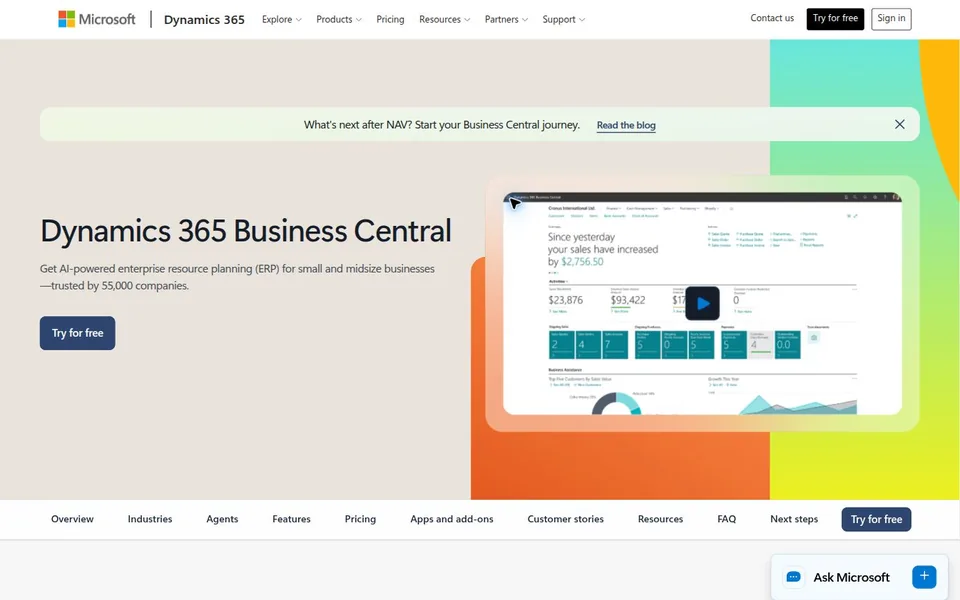
The exact Microsoft Dynamics product matters. Business Central, Dynamics NAV and Dynamics AX are not interchangeable integration targets. Confirm the version and deployment model before choosing a connector or applying instructions.
Business Central: check the supported environment
Microsoft documents a Shopify connector for Business Central. Check its environment requirements and data coverage. The technical FAQ states that it does not serve other Dynamics 365 applications.
Begin with a variant item and an order. Check article identifiers, locations, prices, customers and payment mapping. Decide which values Business Central owns and which Shopify may edit.
Dynamics NAV: account for installed customisations
Record the NAV version, modifications and available interfaces first. Business Central instructions do not establish compatibility with NAV. Compare an existing connector with a custom or middleware-based connection.
Name the partner responsible for ERP changes. The Shopify team can define the required handoffs, while NAV modifications need the owner of that environment.
Dynamics AX: define the order process
For AX, establish how products, locations and orders are distributed across sales channels today. A future ERP replacement can affect the connection you choose. State whether the integration is intended to remain or support a transition.
Again, check the specific product and version. The phrase “Dynamics 365” alone does not identify an available API or data model.
Shared acceptance cases
Test ordinary fulfilment, partial fulfilment, cancellation and refunds. Compare amounts and references in both systems. Retrying an order must not duplicate it, and rejected messages must stay visible to the responsible team.
Once those cases are defined, implementation and operating effort can be assessed. The ERP guide supports the shared data plan. Add the migration checklist when the storefront changes too.