
Find your Shopify files again with folders
You need the approved product photo. Shopify has three similar images, an old crop and a file called “final-new-2”. Someone has to ask which version belongs in the next campaign. Those interruptions make catalog work slow. A useful folder structure can remove many of them.
Shopify now supports folders and subfolders under Content > Files. I checked the feature in the admin on November 18, 2026. Shopify documents the steps in its Help Center. Shopify file management
Create your first folder
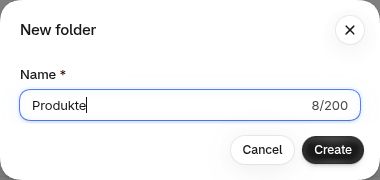
Open Content > Files, select New folder, enter a name and choose Create. Select existing files and use Move to to relocate them. Open a folder first to create a subfolder inside it. Shopify instructions
Start with one manageable area. A current product range or the assets for your next campaign will do. Ask where a colleague would look for the same file later. If two people give different answers, the folder needs a clearer name.
A small catalog needs only a few categories
For a modest product range, I would begin with the following folders. Treat these as a suggested structure and adapt them to your store.
- Products for approved product images, with a subfolder per product group where needed.
- Brand for logos, team photos and recurring visual assets.
- Campaigns for promotions, each named with its year and purpose.
- Instructions for public PDFs, care guides and size guides.
- To review for files whose use or approval still needs checking.
A folder called “Miscellaneous” soon becomes another pile to sort through. Give each file a home based on what people use it for. Ten similar product images will often be easier to find in one product folder than in ten separate subfolders.
Larger catalogs need an agreed naming rule
With several brands, suppliers and seasons, I would organize the first level around how the team works. A team responsible for brands starts with brands. A team responsible for categories starts with categories.
For example, Products / Outdoor / Jackets / Model-4711 could contain 4711-olive-front.webp, 4711-olive-zip-detail.webp and 4711-care-en.pdf. The model number connects the image to its product and to any supplier question. Color, view and language identify the particular asset.
Write the rule in a few sentences and give new colleagues a finished example. Agree who creates new sections, too. Otherwise “Jackets”, “Outerwear” and “New jackets” can become competing homes for the same products.
Begin cleanup with a review
I would sort a small set of files first, then check the affected product pages, downloads and campaigns. Record who approved each change and where you checked the file's use. An internal working list is enough for this.
Similar thumbnails deserve a closer look. Check resolution, crop, language and actual use before deleting either file. An older instruction PDF might still be linked in an email sent to customers. Keep copies of the originals and the relevant references before removal.
Deleting a Shopify folder also deletes its contents. Move needed files out first. The Files library is intended for public assets. Keep customer data and confidential CRM exports in a system with restricted access. Shopify file guidance
Check whether the structure helps
Time a few ordinary tasks before cleanup. Find an approved photo, locate the matching instruction PDF and gather a product group's assets for a campaign. Repeat those tasks afterward. The comparison tells you whether the structure works in practice.
A handover is a useful test. Ask someone who did not create the folders to find the files without help. If they get stuck, adjust the names or grouping. Creating a few folders takes little effort. Maintaining them becomes easier when everyone follows the same rules.
Structured product data is a sensible next step. The Sidekick article explains how to prepare metafields for analysis, while the customer accounts article looks at the experience after a purchase. Analyze metafields with Sidekick · Customer accounts and CRM
I help teams review and improve the connection between their assets, product data and integrations. Shopify development